
Video Resizer In CapCut Pro That Keeps Perfect Quality 2026
Learn how to use Video Resizer In CapCut Pro to resize videos while keeping perfect quality.
Introduction To Video Resizer
You know when you resize a video and suddenly it doesn’t hit the same anymore. The vibe changes. The edges look soft. Faces lose detail. Text gets fuzzy. It’s frustrating, honestly. That’s why learning how a Video Resizer in CapCut Pro actually works matters more than most people think. Resizing isn’t just changing numbers. It’s about keeping quality while adjusting size.
In this article, I’ll walk you through how resizing works inside CapCut, what causes quality loss, and how to avoid it. No shortcuts. No overpromises. Just real editing advice. We’ll talk about settings, formats, mistakes, and smart habits. This is for people who want their videos to look clean, not rushed. Let’s get into it.
What Video Resizing Really Does
Resizing a video sounds simple, but it’s not. When you resize, the app has to decide what to do with pixels. If it shrinks them, things usually look fine. If it stretches them, quality drops fast. That’s why upscaling is risky. You’re asking the software to guess details that weren’t there before. Sometimes it guesses wrong. Downscaling is safer. You remove pixels instead of creating fake ones. This keeps edges sharper. A Video Resizer In CapCut Pro works best when you respect the limits of your source footage.
Why Quality Loss Happens So Easily
Quality loss usually comes from stacking mistakes. One bad choice is manageable. Three or four will wreck the video. Common issues include resizing multiple times, exporting at low bitrate, or changing frame rates without reason. Another big issue is compression. Social platforms compress videos hard. If your export is already weak, compression makes it worse. Understanding this helps you resize smarter, not harder.
Why CapCut Is a Go-To Tool for Resizing
CapCut became popular because it feels easy. The tools are right where you expect them. No clutter. No confusion. With CapCut Pro, you get more control over exports and fewer limits. That helps when quality matters. CapCut also supports modern video formats and social ratios out of the box. That saves time. Ease doesn’t mean low power. It just means fewer headaches.
Aspect Ratios Come First, Always
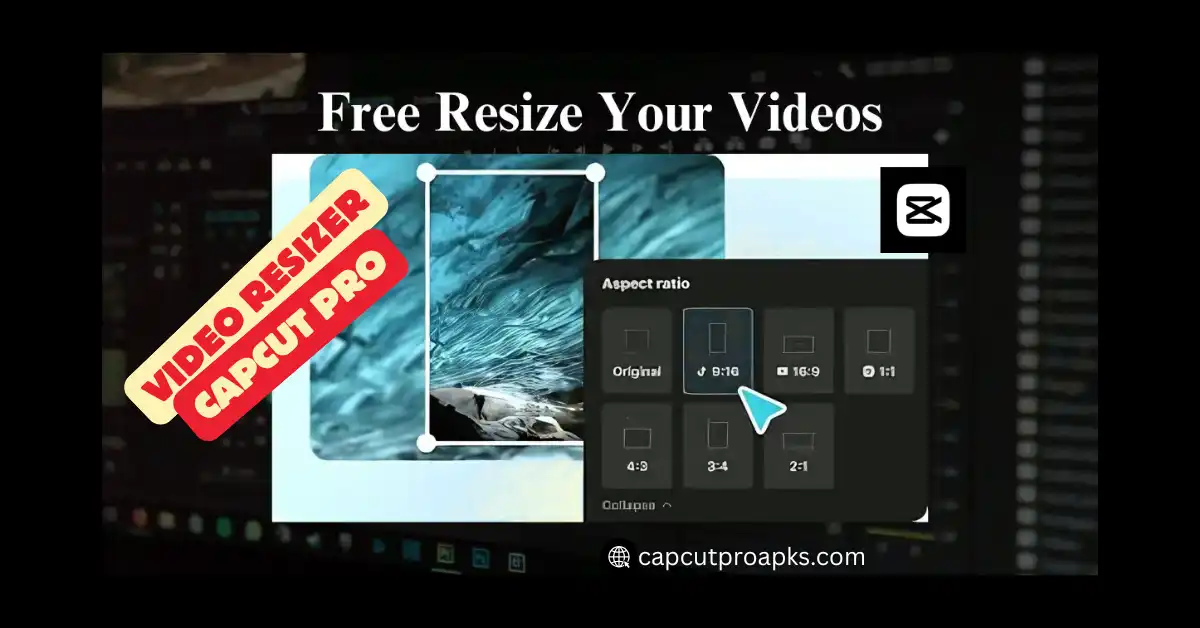
Before resizing anything, decide the aspect ratio. This sets the shape of the video.If you pick the wrong ratio and fix it later, you’ll stretch or crop badly. That’s where blur sneaks in. CapCut offers presets for vertical, square, and wide videos. Use them. A Video Resizer In CapCut Pro works best when the canvas is correct from the start.
Resolution vs Quality (They’re Not the Same)
People mix these up all the time. Resolution is size. Quality is clarity. Not all 4K videos look good. Some look worse than 1080p videos. Quality depends on bitrate, compression, and scaling. When resizing, focus on how clear the video stays. Bigger resolution numbers don’t fix weak footage. A 720p source stays 720p quality..
Best Practices Before You Resize
Start with the highest quality file you have. That gives you room to work. Set your canvas ratio first. Don’t resize clips randomly. Don’t Push the Size Too Much Try not to scale your video above 100% unless you really have to. Little habits like this do more to protect quality than any filter you add later.
Step-by-Step: Clean Resizing Inside CapCut
Open a new project and set the ratio immediately. Add your clip. Let it sit naturally in the frame. Adjust position before scaling. Crop when possible. Export with manual settings instead of auto. This simple flow keeps your Video Resizer In CapCut Pro from damaging your footage.
Export Settings That Matter Most
Resolution should match your target platform. Bitrate should stay close to the original or higher if possible. Frame rate should stay consistent. Codec choice matters too. Stick with standard formats. These choices matter more than effects.
Resizing for Social Media Platforms
Each platform compresses differently. Vertical videos work best for short-form content. Keep important visuals centered. Avoid tiny text near edges. A smart Video Resizer In CapCut Pro setup accounts for where the video will live.
How CapCut Pro Helps Maintain Quality
The biggest benefit of CapCut Pro is control. You’re not forced into default exports. You can fine-tune resolution and bitrate. You also avoid some limits found in free tools. It won’t save bad footage. But it also won’t make it look worse.
About APK Versions (Quick Reality Check)
Some users search for CapCut Pro APK thinking it unlocks everything. That’s risky. Modified builds often cause crashes or broken exports. The same applies to CapCut Pro Mod APK files floating online. Quality and stability matter more than unlocked effects.
Download Safety and Performance
Searching for CapCut Mod APK Download or CapCut APK Download can expose your device to malware. Unofficial sources often modify encoding settings. That leads to unstable exports and weird glitches. Official apps are safer for serious editing.
Older Versions and Compatibility
Some creators stick to CapCut Old Version because they’re used to it. Older builds may lack updated encoding improvements. That can hurt resizing quality over time. Newer versions usually handle compression better.
Editing on Different Devices
CapCut works across devices, but experience changes. CapCut for PC offers more space and control. CapCut for iOS feels fast but limited by mobile exports. CapCut for Mac balances power and simplicity. Regardless of device, resizing rules stay the same.
APK Download Versions and Expectations
Some people look for CapCut Pro APK Download hoping for better quality. Updates help, but habits matter more. The same goes for CapCut Pro APK Download Latest Version searches. Tools don’t replace technique.
Real Editing Advice From Experience
I’ve resized videos that looked perfect and ruined them by rushing. Every clean result followed the same steps. Set ratio early. Avoid upscaling. Export smart. A Video Resizer In CapCut Pro rewards patience.
Pros
- Easy interface.
- fast workflow.
- modern ratios.
Cons
- Upscaling limits.
- compression if misused.
It’s strong when used correctly.
External Resource Worth Checking
For official updates and safe downloads, visit the CapCut website: https://www.capcut.com
It’s the best place to stay current.
Conclusion
In the above article, I have covered how resizing works, why quality drops, and how to prevent it using CapCut. We looked at settings, mistakes, platforms, and smart editing habits. A Video Resizer In CapCut Pro isn’t magic. It’s a tool. Do it right and your videos keep their quality. If this made sense, drop your thoughts or questions below.
FAQ
Q: How to freely resize a video in CapCut?
Open CapCut, start a project, set the canvas ratio, then fit your clip inside it.
Q: Does CapCut resize quality?
Yes, CapCut can affect quality if you resize the wrong way.
Q: Is it possible to resize a video without losing quality?
Yes, if you resize smaller instead of larger.
Q: Is there a video limit on CapCut?
CapCut allows long videos, but the limits depend on your device.
Q: What is the best video format?
MP4 uploads faster than heavy formats.
Q: How to auto-resize in CapCut?
Use the preset aspect ratios inside CapCut.
Q: How to auto-resize in CapCut?
Use the preset aspect ratios inside CapCut.
Q: What is a resizer used for?
A resizer changes video size or shape.


