
CapCut Settings to Export for TikTok Perfect Quality in 2025 (Full Guide)
Learn the best capcut settings to export for TikTok in perfect HD without blur. Works for Android, iOS, PC, and Mac.
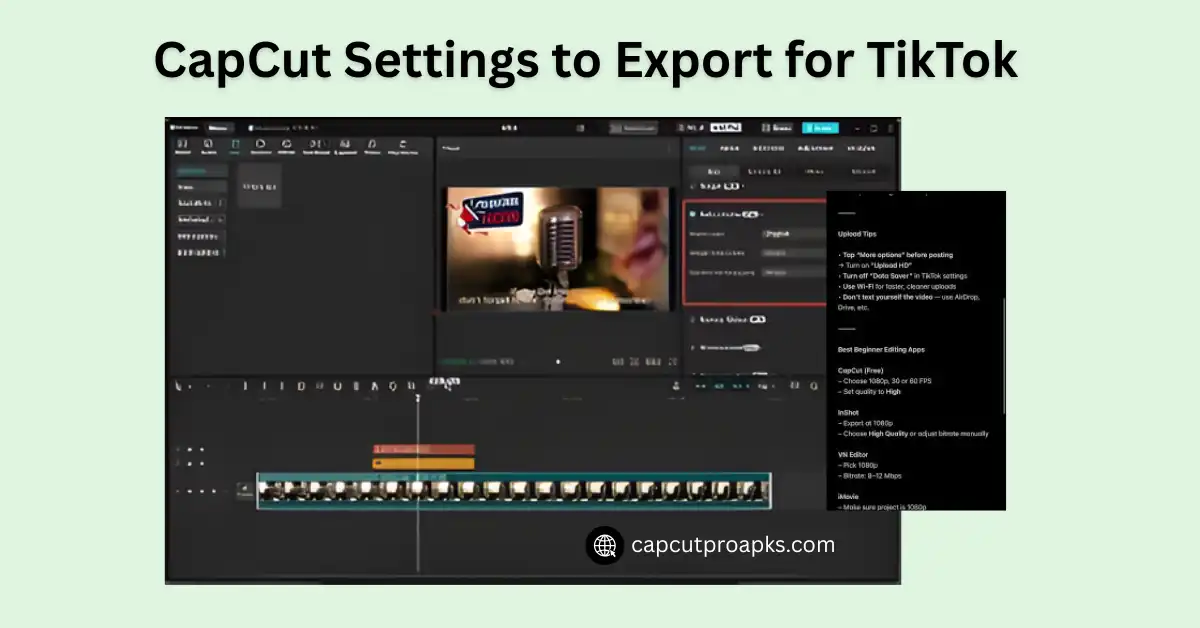
Introduction to CapCut Settings to Export for TikTok
Your CapCut Pro APK clip looks perfect on your phone, right? Then TikTok uploads it and it’s not the same. Everyone’s been there. And honestly, it’s frustrating.Most of the time, it’s not your camera, not your edit, not your phone.
It’s just export settings.That’s why knowing the right capcut settings to export for TikTok makes such a big difference.When you use the correct export format, frame rate, and bitrate, your videos stay sharp, smooth, and clear —even after TikTok compresses them.
In this guide, we’ll go step-by-step through the exact best export settings you should use on:
- CapCut for Android
- CapCut for iOS
- CapCut for PC
- CapCut for Mac
Plus:
- How TikTok compression works
- What resolution TikTok actually prefers
- How to keep sound quality clean
- How to avoid pixelation in motion clips
We’ll also talk about tools people search for like: CapCut Pro MOD, CapCut Pro APK, CapCut Mod APK, CapCut Old Version, CapCut Pro APK Download Latest Version, CapCut for PC, CapCut for Mac, CapCut iOS settings.
But don’t worry — we’ll keep it real.
No risky downloads. No unsafe mod links.
Just clean, safe, professional workflows.
Let’s get into it.
Why Quality Drops After Uploading to TikTok
TikTok compresses every video.
They do it to make loading fast for everyone.
So even if your file is sharp, TikTok will:
- Reduce bitrate
- Resize frames
- Simplify color data
- Drop audio clarity
But — if we export with the right settings, TikTok has less to destroy.
This is how we keep quality as strong as possible.
Best Video Settings for TikTok (General Rule)
These are the universal target settings TikTok prefers:
| Setting | Best Option |
| Resolution | 1080 × 1920 (Vertical) |
| Frame Rate | 30 FPS or 60 FPS |
| Bitrate | 10–20 Mbps |
| Codec | H.264 |
| Format | MP4 |
If your clips involve fast motion → Choose 60 FPS.
If your video is slow, aesthetic, talking, or vlog → 30 FPS is enough.
CapCut Settings for TikTok on Android
If you’re using CapCut on Android, here’s what to do:
- Open your finished project
- Tap Export (top right)
- Set Resolution → 1080p
- Set Frame Rate → 60 FPS
- Set Bitrate → Slightly higher (18–20 Mbps)
- Export
Why 18–20 Mbps?
Android compression is a bit stronger.
A higher bitrate protects details.
Tip:
If your phone struggles, try 30 FPS to avoid lag.
CapCut Settings for TikTok on iPhone (iOS)
iPhone cameras usually shoot clean color and sharp edges.
Use:
| Setting | Value |
| Resolution | 1080p |
| Frame Rate | 60 FPS |
| Bitrate | 12–16 Mbps |
| Format | MP4 |
iPhones don’t need as high bitrate because the compression pipeline is cleaner.
Extra iOS Tip:
Go to Settings → Camera → Formats → Most Compatible
This makes exports sharper
CapCut Settings for TikTok on PC / Mac
If you edit on CapCut for PC or CapCut for Mac, the controls are more precise.
Use:
| Setting | Value |
| Resolution | 1080 × 1920 |
| Frame Rate | 60 FPS |
| Bitrate | 20–25 Mbps |
| Encoding | H.264 (not H.265) |
| Container | MP4 |
| Audio | 44.1 kHz AAC |
Desktop export is the most stable.
Your final video will look closest to the original.
Color & Sharpen Settings That Help Quality
Inside CapCut → Adjustment
| Setting | Value |
| Sharpen | +30 to +40 |
| Contrast | +5 to +10 |
| Saturation | +5 to +12 |
| Highlights | -5 |
| Vignette | Optional |
These small touches make TikTok compression less noticeable.
TikTok Upload Settings (Very Important)
When you upload the video:
- Open TikTok
- Tap Upload
- Select your video
- Tap More Options
- Turn Data Saver → OFF
- Turn Upload HD → ON
If Upload HD is not turned on, TikTok will crush your video quality.
This step matters more than everything else.
What About CapCut Pro, CapCut Mod APK & Older Versions?
Some users search for: CapCut Pro, CapCut Pro APK, CapCut Old Version, CapCut Mod APK Download, CapCut Pro APK Download Latest Version, CapCut APK Download outside Play Store.
Here’s the real, safe advice:
| Option | Saf? | Notes |
| CapCut official app | ✅ | Best choice |
| CapCut for PC / Mac | ✅ | Good for heavy editing |
| CapCut Pro APK (official release) | ✅ | Only download from the official store |
| CapCut Mod APK / cracked versions | ❌ | Risk of malware, account bans, device problems |
| CapCut Old Version | ✅ | Only if downloaded from trusted archive sources |
If you’re building a channel, protect your device and your privacy.
Always download from safe sources like:
Extra Tips to Avoid Blur or Blocky Motion
| Problem | Fix |
| Video looks grainy | Add more light when recording |
| Motion looks choppy | Use 60 FPS |
| Text looks soft | Use bold fonts |
| Colors look washed | Add +10 saturation |
| Upload looks blurry | Enable Upload HD in TikTok |
Small changes → Big difference.
Conclusion
In the above article, I have covered the correct capcut settings to export for TikTok, explained how TikTok compression works, and shared exact settings for Android, iOS, PC, and Mac.I’ve explained how bitrate, frame rate, and resolution work together to keep your video sharp, and what to do so it doesn’t blur once it’s online. If this helped, drop a comment or a question — I’m here to chat.
FAQs
Q: What CapCut settings are best for exporting TikTok?
Use 1080p resolution, 60 FPS, and high bitrate for clean TikTok videos.
Q: How do I export CapCut to TikTok?
Tap “Export,” pick 1080p 60 FPS, then hit “Share to TikTok.”
Q: Is 1080 or 4K better for TikTok? 1080p wins.
4K looks the same once TikTok compresses it.
Q: What is the best export setting for TikTok?
Try 1080p, 60 FPS, high bitrate, and MP4 format.
Q: What are the best capcut settings to export for TikTok?
Use 1080p, 60 FPS, and 15–20 Mbps bitrate for clear results.
Q: Why does TikTok make my videos blurry?
TikTok lowers sharpness. Fix it with higher bitrate.Q: Should I export in 4K for TikTok?
Skip 4K—it gets resized down.


