
Reverse Video in CapCut 2026 – Easy Hack That Makes Videos Look Pro
Learn how to use Reverse Video in CapCut to create eye-catching edits fast. Simple steps, real tips, clean results.
Introduction
Let’s be honest. Most videos don’t fail because the idea is bad. They fail because the edit feels flat. You record something cool. A jump. A splash. A smooth hand move. Then you play it back, and it feels… normal. Nothing special. That’s where Reverse Video in CapCut changes the game. It flips motion backward, and suddenly the same clip feels new. People stop scrolling when something unexpected happens. Reverse effects do that without adding heavy edits.
In this article, I’m walking you through how reverse works, when to use it, when not to use it, and how real creators use it across different devices to make videos feel clean and professional. No hype. No fake promises. Just what actually works in CapCut Pro APK regarding reversing a video.
What Reverse Video Really Means
Reverse video is exactly what it sounds like. Your clip plays backward instead of forward. A glass shatters, then jumps back into shape. A jump plays in reverse, and it feels unexpected. That surprise keeps people interested. They pause. They watch again. That pause matters more than any fancy effect.
Why Reverse Video in CapCut Works So Well
CapCut makes reversing stupidly easy. One tap. No plugins. No learning curve. That’s why beginners use it.
And pros still keep it in their toolbox. Reverse effects work because they create surprise. Surprise keeps attention. And attention is everything on short-form platforms.
Who Uses Reverse Video (And Why)
You’ll see reverse clips everywhere once you notice them. TikTok creators use it to loop content. Instagram editors use it for transitions. YouTubers use it for intros and visual jokes. Even brand videos use reverse to stand out without looking try-hard. It’s not about being flashy. It’s about being memorable.
How to Reverse a Video in CapCut (Simple Steps)
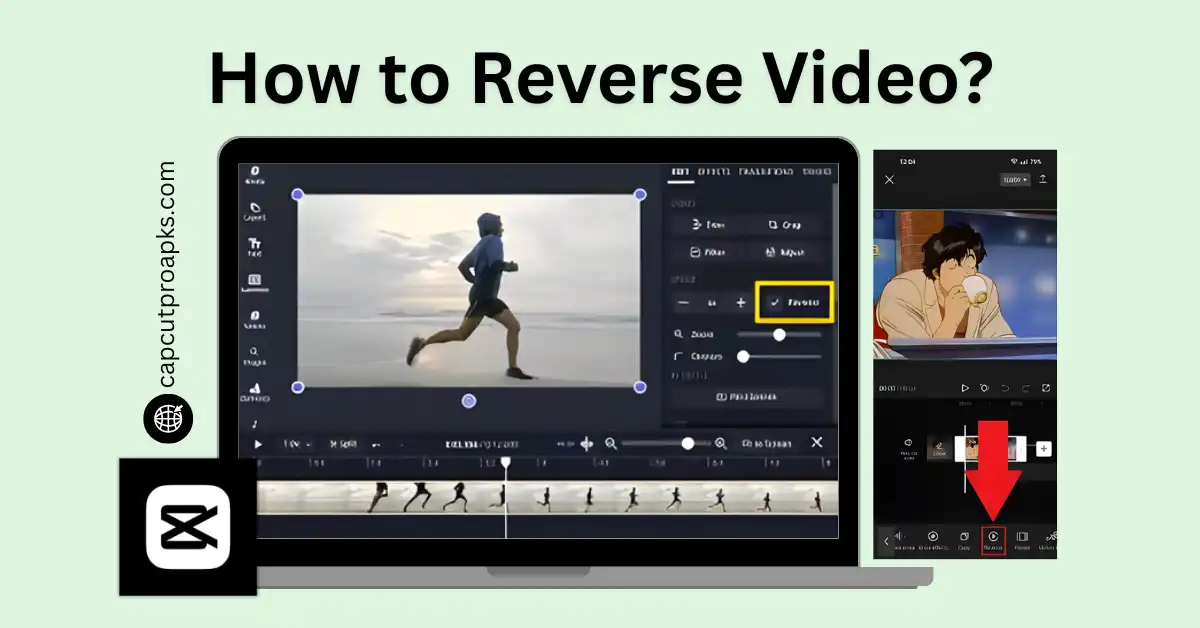
- Step One: Start a New Project
Open CapCut and tap “New Project.” Select your video.
- Step Two: Tap the Clip
Click once on the clip in the timeline. Editing options appear.
- Step Three: Hit Reverse
Scroll until you see “Reverse.” Tap it and wait a moment.
- Step Four: Preview
Play the clip. Trim if needed. That’s it. No extra settings. No confusion.
What Happens to Audio When You Reverse a Clip
Here’s something people forget. Audio reverses too. Sometimes that’s cool. Sometimes it sounds terrible. If audio matters, mute the reversed clip and add music or voiceover. That one move saves a lot of frustration.
Using Reverse Video on Different Devices
Reverse Video on CapCut for iOS
Works fast. Perfect for reels and short clips. Touch controls feel smooth. Best for quick edits on the go.
Reverse Video on CapCut for PC
Gives more space to work. Better for longer videos. Processing feels more stable, especially on strong machines.
Reverse Video on CapCut for Mac
Same features as PC. Clean interface. Switching devices feels easy because CapCut keeps things consistent.
Does Reverse Work on Older Versions?
Yes, but not always smoothly. If you’re using CapCut Old Version, reverse might take longer. Sometimes exports lag. If reverse fails or freezes, updating usually fixes it. Old versions weren’t built for heavy effects.
Reverse Video and Pro Versions
Reverse works in free CapCut. But Pro versions smooth out the process. With CapCut Pro, exports are faster and cleaner. Less waiting. Fewer crashes. Some people search for things like CapCut Pro APK, CapCut Pro Mod APK, or CapCut Mod APK Download to unlock features. Here’s the real talk. Those versions can work, but they can also break the app or cause bugs. Official tools are safer. They don’t disappear after updates.
Export Quality and Reverse Effects
Reversing itself doesn’t lower quality. Export settings do. If you want clean HD output, Pro options help. That’s why people look for the CapCut Pro APK Download Latest Version. If you’re using CapCut APK Download, always double-check the resolution before exporting. A good reverse clip looks bad if it exports blurry.
Creative Ways to Use Reverse Video
Action Moments
Drops. Throws. Jumps. Reverse makes them hit harder.
Transitions
Reverse a clip, cut forward, then reverse again. Smooth and clean.
Before and After
Messy to clean. Broken to fixed.
Looping Clips
Reverse plus forward creates seamless loops. Perfect for social feeds.
Real Creator Advice (From Use)
Reverse works best on short clips. Three to six seconds is ideal. Long reversed clips feel awkward.
They lose impact. Always preview before exporting. What feels cool in your head might not look good on screen.
When Reverse Video Looks Bad
Let’s be honest again. Reverse doesn’t fix weak clips. It doesn’t replace storytelling. If the clip is boring forward, reverse won’t save it. It just hides problems sometimes. Use reverse with intention.
Not as a crutch.
Reverse Video Compared to Other Effects
Slow motion feels dramatic. Fast cuts feel energetic. Reverse feels clever. It’s subtle when used right. That’s why it works. CapCut keeps reverse simple, unlike other apps that bury it under menus.
Pros
- One-tap feature
- Works on all devices
- No editing experience needed
- Free version supports it
- Great for short-form content
Cons
- Audio reverses too
- Long clips take time
- Older devices may lag
- Overuse feels gimmicky
Is Reverse Video Safe to Use?
Yes, inside the official app. CapCut processes a copy of your clip. Your original file stays untouched. Problems usually come from unofficial mods. Stick to trusted sources. You can always check updates on CapCut’s official site.
Reverse Video for Social Media
Reverse clips perform well on:
- TikTok
- Instagram Reels
- YouTube Shorts
They work because they interrupt patterns. People stop scrolling. That pause is everything.
Reverse Video for Longer Content
Reverse isn’t just for short clips.
- Use it in intros.
- Use it for flashbacks.
- Use it for visual jokes.
Just don’t overdo it. One good reverse is better than five random ones.
Common Mistakes Creators Make
- Reversing every clip.
- Forgetting audio.
- Exporting low quality.
- Using reverse without a reason.
- Reverse is seasoning.
- Not the whole meal.
Internal Linking Ideas
You can pair this with guides like:
- How to add slow motion in CapCut
- Best CapCut transitions for short videos
They work well together.
Conclusion
In the above article, I have covered how Reverse Video in CapCut works, why creators use it, and how you can apply it to make videos feel cleaner and more professional without wasting time. Reverse effects don’t require skill.
They require judgment. Used right, they make simple clips stand out. Used wrong, they feel forced. If this made things clearer, say something below. I’m listening.
FAQs
Q: Is there a way to reverse a video in CapCut?
Yes. Tap the clip and hit reverse.
Q: Why can’t CapCut apply reverse?
The clip might be too long, or your device may be low on storage.
Q: What video format works best with CapCut?
MP4 works the smoothest.
Q: What are the steps to reverse a video?
Open CapCut and start a project.
Q: Can I add music to reversed videos in CapCut?
Yes, you can add music anytime, and music can be added after reversing.
Q: Can you reverse multiple clips at once?
No, CapCut reverses one clip at a time.
Q Why doesn’t my reverse work on CapCut?
The clip might be too long, or your phone may lack storage.


