
AI Text Captions CapCut: Powerful Features Every Creator Should Know
AI Text Captions CapCut helps creators add captions fast. Get to know how it works, advantages, disadvantages and how to do it better.
Introduction
Let’s be straight. Writing captions is annoying. It takes time. And half the time, you don’t even know what to type. If you edit videos often, you already know this pain. You finish the video, but the captions slow everything down. That’s where AI Text Captions CapCut steps in and saves you. A lot of creators are using CapCut now. Some are beginners. Some are doing this full-time. Either way, captions matter more than ever.
In this article, I’ll break down how AI text captions work in CapCut Pro Downlaod is simple — you give it sound, and it makes words. What they do, where they come short, and how you can actually utilize them without actually making things a mess. No hype. No tech talk. Just real use.
What Are AI Text Captions in CapCut?
AI text captions are automatic subtitles created by CapCut. You upload a video. The app listens to the audio. Then it turns speech into text. That’s it. No typing every word. No guessing timing.
The AI Text Captions CapCut Pro feature is built for speed. This is for people who want quick captions. Talking videos and voice clips work well. Good audio helps.
Why Captions Matter So Much Now
People scroll fast. Viewers mostly turn the sound off. Captions explain your video. They help hold attention. TikTok and Instagram promote captioned stuff more. That’s just normal now. So, using AI Text Captions CapCut isn’t optional anymore. It’s a basic move.
How AI Text Captions Work in CapCut
The process is simple.
- You open CapCut.
- Import your video.
- Tap the Text option.
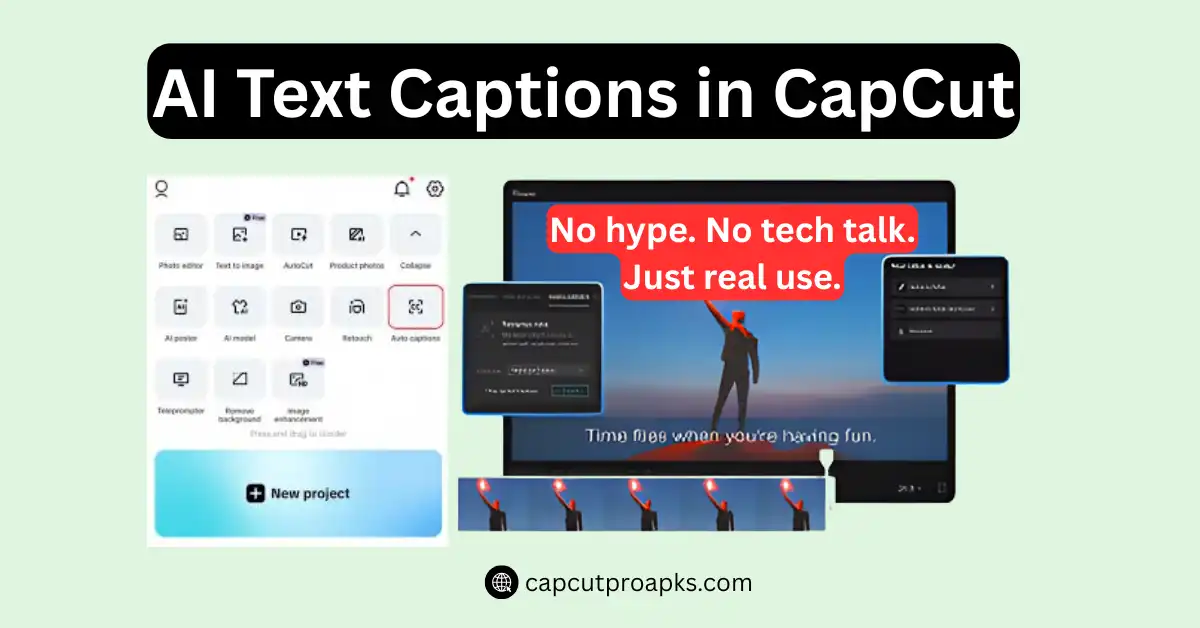
- Choose Auto Captions.
- CapCut scans the audio and adds text line by line.
- You can choose the language.
- You can edit mistakes.
- You can change fonts and styles
It’s fast. Usually under a minute.
Accuracy: Is It Actually Good?
Short answer: mostly yes. If your audio is clear, the captions are accurate. If you mumble, talk fast, or have noise, errors happen. Names, slang, and accents sometimes confuse it. That’s normal.
You should always review captions before posting. Don’t trust it blindly. Still, AI Text Captions CapCut saves way more time than typing everything yourself.
Best Ways to Use AI Text Captions
Talking Head Videos
This is where it shines. Clear voice. Simple sentences. Clean captions.
Tutorials and Explainers
Captions help viewers follow steps without replaying audio.
Short-Form Content
Reels and Shorts need captions. No debate.
Editing Caption Styles
CapCut lets you customize captions. You can change the font size. You can add background boxes. You can animate text. Keep it simple. Big text. High contrast. Fancy styles look cool, but hurt readability.
Languages Supported
CapCut supports many languages. English works best. Other languages are decent but may need more edits. If your audience is global, captions help reach more people.
Pros
- Saves a lot of time
- Easy to use
- Good accuracy with clear audio
- Works well for short videos
- Built into the app
Cons
- Struggles with accents
- Mistakes with names and slang
- Needs manual checking
- Not perfect for noisy audio
Free vs Paid Features
The caption tool works in the free version. But CapCut Pro MOD APK offers more text styles and animations. You don’t need Pro for captions. But extra styles are nice if branding matters. Alright. Same meaning. Raw. Simple. Separate lines. No shine. Those files are risky and not worth it. Stick to official CapCut APK Download sources only.
CapCut on Different Devices
CapCut works on many platforms.
- CapCut for iOS runs smoothly on iPhones
- CapCut for PC is good for longer edits
- CapCut for Mac feels cleaner for the workflow
Captions work the same across devices. Some people still use CapCut Old Version, but newer versions handle captions better.
Tips to Get Better Caption Results
Speak clearly. Avoid background noise. Pause between sentences. After generating captions, skim through once. Fix mistakes. Done. That’s the workflow.
Is CapCut Safe to Use?
Yes, if you download it properly. Avoid fake sites offering CapCut Pro APK Download Latest Version for free.
Those can harm your device or steal data. Use the official app store or CapCut’s real site.
Who Should Use AI Text Captions?
- Beginners.
- Content creators.
- Small businesses.
- Teachers.
- Anyone posting videos online.
If you talk in your videos, captions help. Simple.
Real Use Case
Let’s say you make daily reels. Without captions, you spend 20 minutes typing. With AI Text Captions CapCut, it takes 2 minutes. That time adds up fast.
Common Mistakes People Make
Posting captions without checking. Using tiny fonts. Adding too much animation. Clean captions always win.
Comparison With Other Apps
Other apps offer captions too. But CapCut is faster and easier for beginners. You don’t need extra software. It’s all in one place.
Conclusion
In the above article, I have covered how AI Text Captions CapCut works, why captions matter, how accurate they are, and how to use them the right way. Captions aren’t extra anymore. They’re basic.
CapCut makes them fast and simple.
If you talk in your videos, use captions. No excuses. If you found this helpful, share your thoughts or drop your questions in the comments below — I’d love to hear from you.
FAQ
Q: How to use AI text on CapCut?
Import your video and tap Auto Captions.
Q: How do you generate captions in CapCut?
Use the Auto Caption feature in Text.
Q: What are the features of CapCut AI?
AI features help save time during edits.
Q: Does CapCut use AI for captions?
You talk in the video. CapCut writes it. That’s the AI part.
Q: Is CapCut AI free to use?
Yeah, the basic AI tools in CapCut don’t cost anything.
Q: What does an AI writer do in CapCut?
It helps you make text stuff without typing everything yourself.
Q: Can CapCut AI generate videos from text?
Not really — CapCut can’t make whole videos just from text yet.
Q: Is CapCut AI available on all devices?
Mostly, yes — you get AI tools on phones and computers.


