
How to Adjust Ratio on CapCut PC Easily in 2025
Learn how to adjust ratio on CapCut PC for YouTube, TikTok, and Instagram with simple steps. Safe and easy guide for beginners.
Introduction
Hi! Have you ever tried to edit videos on a computer? It can be really tricky to make the video the right size.
Well, that’s exactly why we’re talking about how to adjust ratio on CapCut Pro APK for PC today. You’ll see, it’s not as hard as it seems, and I’ll show you every step. If the size is wrong, your video might look weird.
You trim, add cool effects, and then… boom! The frame looks squished or stretched. Not fun.
In this guide, we’ll cover everything from opening your project to picking the perfect ratio. We’ll also go over why the ratio matters, some editing tips, and my personal tricks for smoother edits.
By the end, you’ll feel confident tweaking your videos like a pro, without risking a weird, stretched output. Trust me, even if you’re new to CapCut PC, this guide will make it simple.
Why Video Ratio Matters
You might ask, “Does it matter if my video is tall or wide?” Yes, it does! The shape changes how it looks on phones and computers.
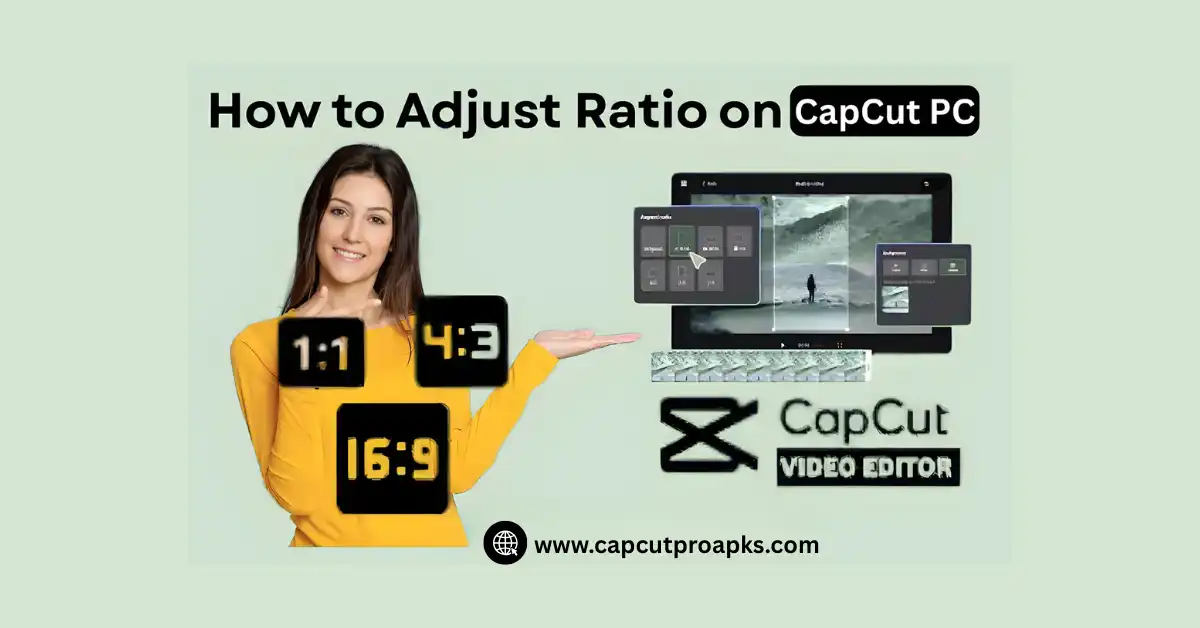
16:9 is perfect for YouTube or widescreen monitors.
9:16 works best for Instagram Reels or TikTok.
1:1 is great for posts that need a square format.
Choosing the wrong ratio can make your visuals look off or even cut out important parts of your clip. That’s why learning how to adjust ratio on CapCut PC is so useful.
Opening Your Project on CapCut PC
- Launch CapCut on your PC. If you don’t have it yet, grab it from the official CapCut website.
- Click New Project.
- Import the video you want to edit.
This part is easy, but don’t skip it. Getting things ready right saves trouble later.
How to Adjust Ratio on CapCut PC
Step 1: Locate the Ratio Button
Once your video is loaded, look at the toolbar above your timeline. There’s a button called “Ratio” or sometimes “Canvas” depending on your version.
Click it, and a menu pops up with common video shapes like 16:9, 9:16, 1:1, and more.
Step 2: Pick the Right Ratio
Think about where your video will go:
- YouTube → 16:9
- TikTok → 9:16
- Instagram feed → 1:1
Click the ratio you want, and CapCut automatically resizes your video.
Step 3: Adjust the Frame
Sometimes parts of your video might disappear. Don’t worry! Just use Drag or Zoom to move it back.
Pro Tip: Don’t over-zoom—important parts might disappear.
Tips to Make Ratio Editing Easier
- Preview Often: After changing the ratio, always watch your video to check for missing content.
- Use Background Fill: If your video doesn’t match the ratio perfectly, add a blur or colored background to fill empty space.
- Save Versions: Keep the original file in case you want a different ratio later.
Honestly, these small steps save so much headache, especially for multi-platform uploads.
Pros and Cons of Adjusting Ratio
Pros:
- Fits multiple platforms
- Makes videos look professional
- Keeps important visuals in frame
Cons:
- Some parts of your video may get cropped
- Extra editing time might be needed
- Over-zooming can reduce quality
Common Mistakes to Avoid
Choosing the wrong ratio for the platform → Always check where your video will be shared.
Over-zooming → Parts of the scene can disappear.
Not checking previews → This can lead to squished or stretched visuals.
Conclusion
In the above article, I have covered how to adjust ratio on CapCut PC step by step. We saw why the ratio matters, how to select the right one, and some easy tricks to do it right.
The right choice makes your video look great and clean.
If you enjoyed this, write your thoughts or questions below—I’m excited to read them!
Frequently Asked Questions
Q1: Can I change the ratio after editing in CapCut PC?
Yes! You can adjust the ratio anytime without losing edits. Just click the Ratio/Canvas button.
Q2: What’s the best ratio for TikTok?
9:16 works best for vertical TikTok videos.
Q3: Will changing ratio reduce video quality?
Not usually, but over-zooming can make it blurry. Keep an eye on resolution.


